> ## Documentation Index
> Fetch the complete documentation index at: https://docs.istari.ai/llms.txt
> Use this file to discover all available pages before exploring further.
# Lists
> Group relevant organizations into a list for further analysis.
A **List** is a saved collection of organizations you've curated from your search results, think of it as a shortlist or a working set you can come back to, export, or analyse with AI.
## Create a list
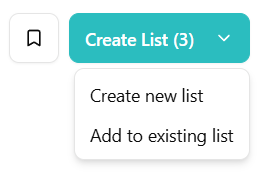
From any results table, tick the checkboxes next to the organizations you want to keep. Then use the toolbar to either:
* **Create a new list**: give the list a name and save it.
* **Add to existing list**: append the selected organizations to a list you already have.
 ## Manage your lists
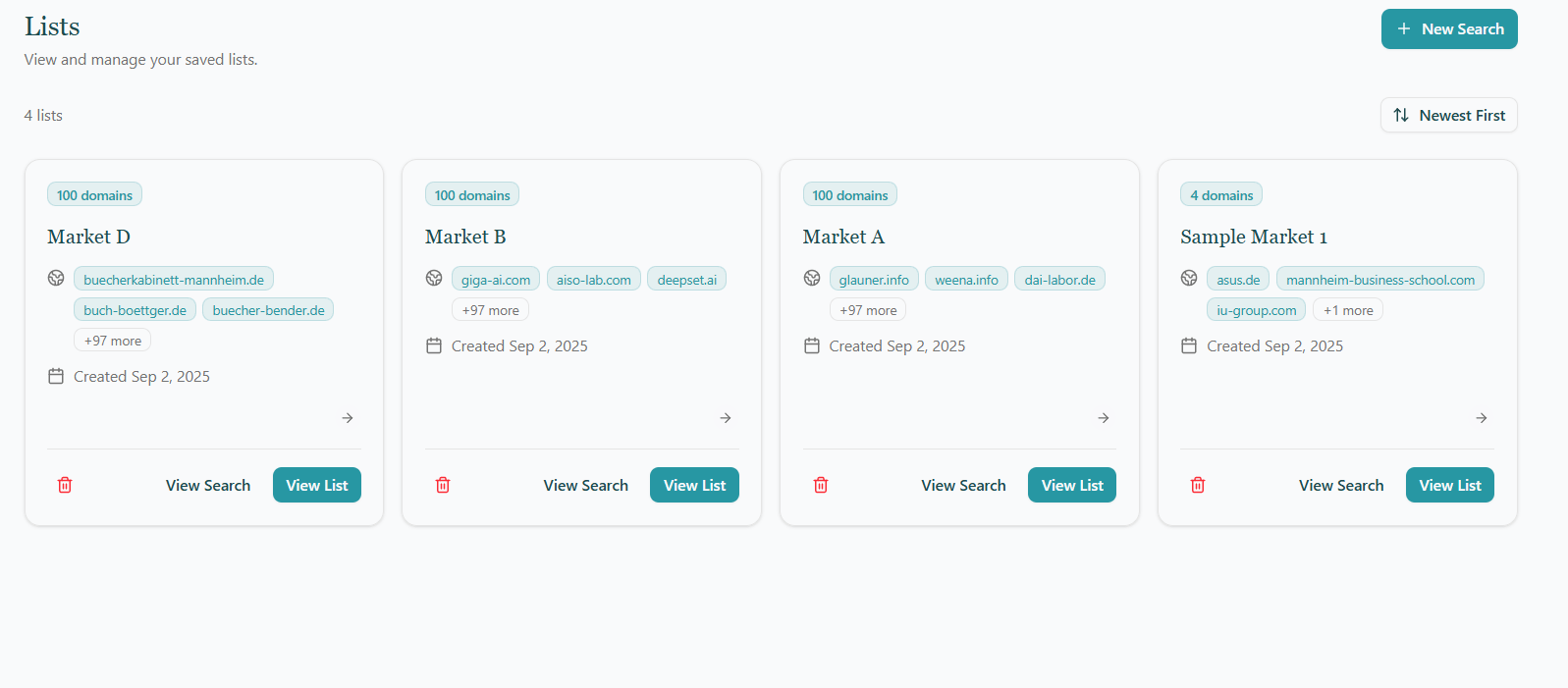
All of your lists are accessible from the **Lists** tab in the sidebar. Each card shows the list name, how many domains it contains, and when it was created. From here you can:
* **View List**: open the list detail page (see below).
* **View Search**: re-run the original search that seeded the list, so you can discover more organizations to add.
* **Delete**: remove a list permanently (this can't be undone).
Use the **Newest First / Oldest First** toggle to re-sort the grid.
## Manage your lists
All of your lists are accessible from the **Lists** tab in the sidebar. Each card shows the list name, how many domains it contains, and when it was created. From here you can:
* **View List**: open the list detail page (see below).
* **View Search**: re-run the original search that seeded the list, so you can discover more organizations to add.
* **Delete**: remove a list permanently (this can't be undone).
Use the **Newest First / Oldest First** toggle to re-sort the grid.
 ## List detail page
Opening a list shows every organization you've added, along with:
* A header with the **list name** and creation date, plus a back arrow to return to the Lists overview.
* A **search-source dropdown** above the table. If your list was built from multiple searches, this lets you switch between **All Searches** (every organization in the list) and any individual originating search. Each option shows the number of domains it contains. When you pick a specific search, a **View Search** button appears so you can re-run it and discover more candidates to add.
* The full-featured table: same column management, hide-duplicates, export and other tools as on the regular [Search Results](/goi/search-results) page.
## List detail page
Opening a list shows every organization you've added, along with:
* A header with the **list name** and creation date, plus a back arrow to return to the Lists overview.
* A **search-source dropdown** above the table. If your list was built from multiple searches, this lets you switch between **All Searches** (every organization in the list) and any individual originating search. Each option shows the number of domains it contains. When you pick a specific search, a **View Search** button appears so you can re-run it and discover more candidates to add.
* The full-featured table: same column management, hide-duplicates, export and other tools as on the regular [Search Results](/goi/search-results) page.