> ## Documentation Index
> Fetch the complete documentation index at: https://docs.istari.ai/llms.txt
> Use this file to discover all available pages before exploring further.
# Saved searches
> Save a search configuration and re-run it later.
A **Saved Search** captures everything about a query, the search type, your description or reference domain, all keyword filters, locations, and organization-specific filters, so you can re-run it later with one click. Use it for recurring market scans, ongoing prospecting, or anything you'd otherwise re-type by hand.
## Save a search
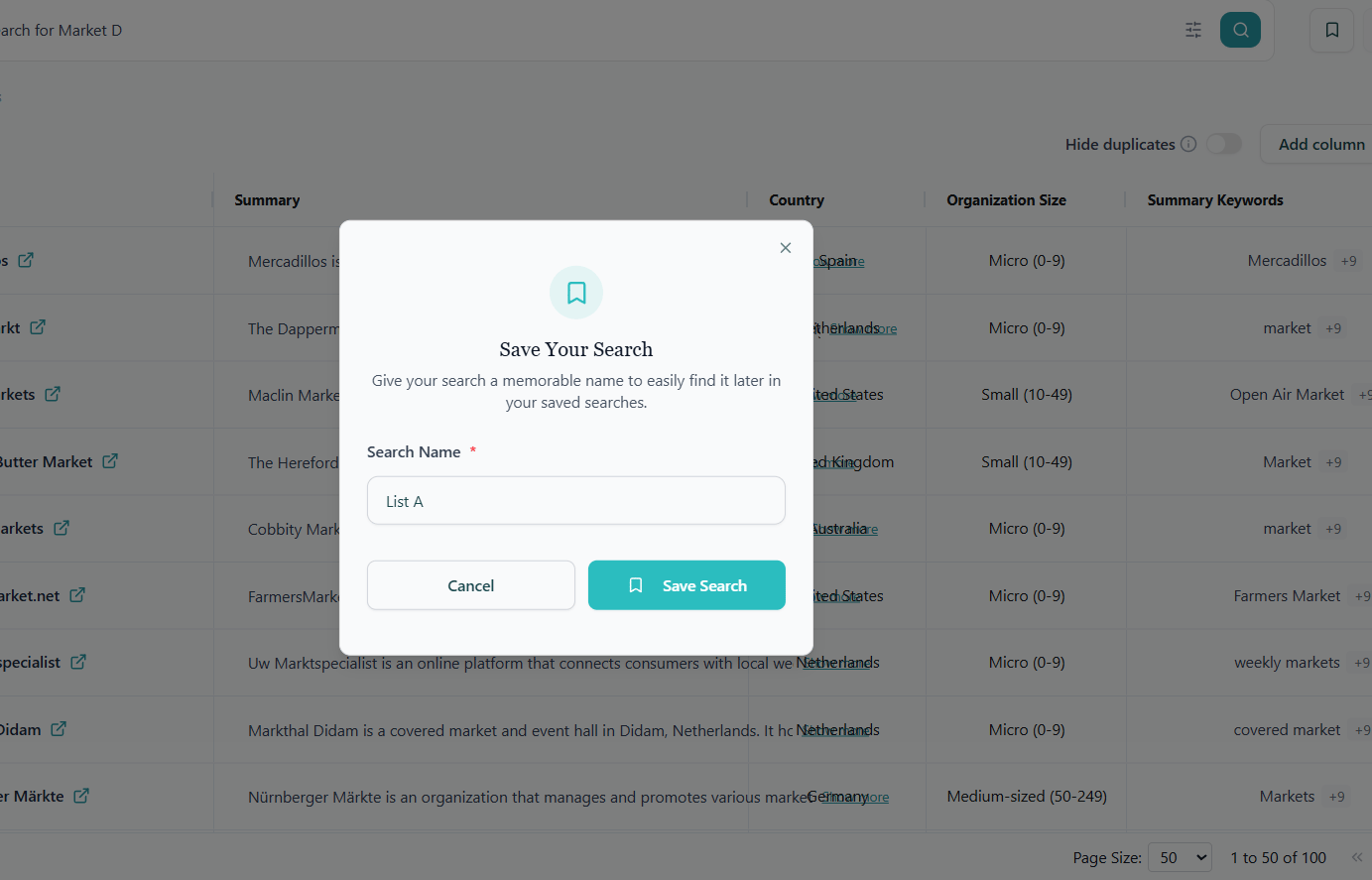
From any results page, click **Save Search** in the top-right corner. Give the search a descriptive name (e.g. *"German aluminium recyclers"*) and confirm. The search appears immediately in the **Saved Searches** tab in the sidebar.
 ## Manage your saved searches
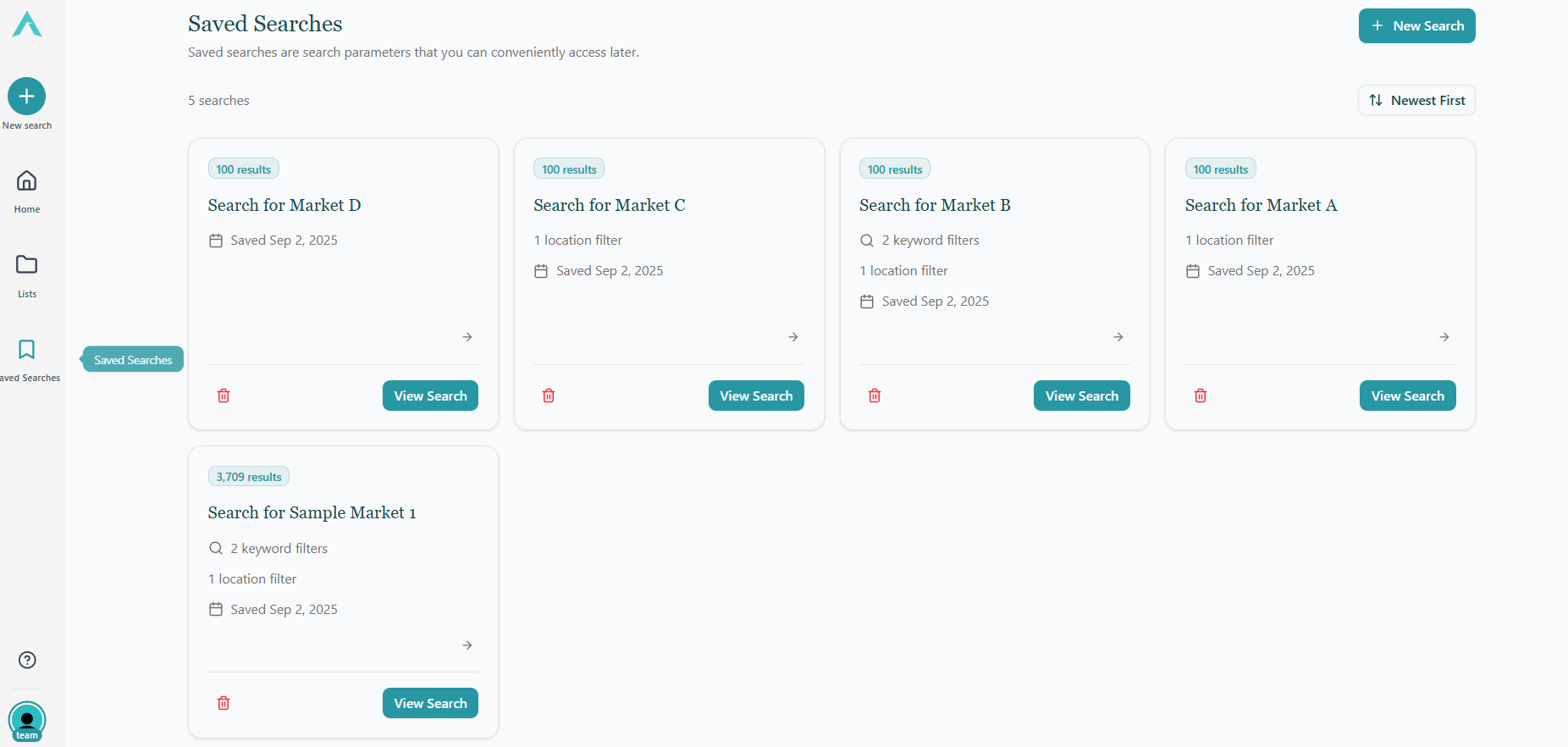
The **Saved Searches** page lists every search you've saved as a card. Each card shows:
* The **search name** you chose.
* A **result count** badge with the number of matches the search returned when you last ran it.
* A **Domain search** badge if the search was built around a reference website.
* The keywords and location filters applied, shown as a short summary.
* The date you saved the search.
## Manage your saved searches
The **Saved Searches** page lists every search you've saved as a card. Each card shows:
* The **search name** you chose.
* A **result count** badge with the number of matches the search returned when you last ran it.
* A **Domain search** badge if the search was built around a reference website.
* The keywords and location filters applied, shown as a short summary.
* The date you saved the search.
 From each card you can:
* **View Search**: re-run the search and land on a fresh results page.
* **Delete**: remove the saved search permanently. This cannot be undone.
Use the **Newest First / Oldest First** toggle at the top of the grid to reorder the cards.
## Starting a new search
Click **New Search** in the top-right of the Saved Searches page (or the same button in the sidebar) to return to the search panel and build another query from scratch.
From each card you can:
* **View Search**: re-run the search and land on a fresh results page.
* **Delete**: remove the saved search permanently. This cannot be undone.
Use the **Newest First / Oldest First** toggle at the top of the grid to reorder the cards.
## Starting a new search
Click **New Search** in the top-right of the Saved Searches page (or the same button in the sidebar) to return to the search panel and build another query from scratch.