A Saved Search captures everything about a query — the search type, your description or reference domain, all keyword filters, locations, and organization-specific filters — so you can re-run it later with one click. Use it for recurring market scans, ongoing prospecting, or anything you'd otherwise re-type by hand.
Save a search
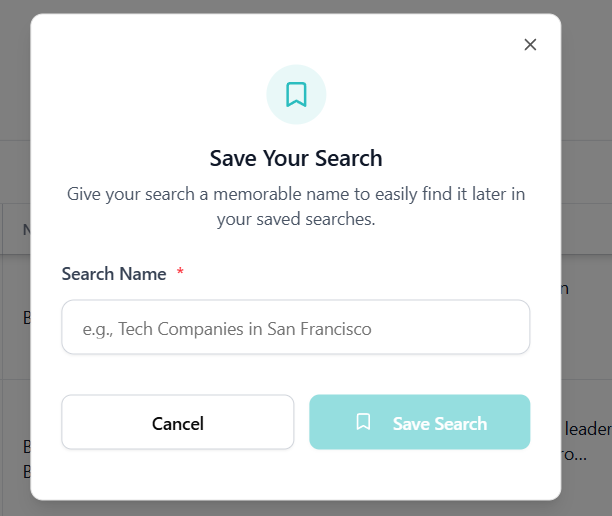
From any results page, click Save Search in the top-right corner. Give the search a descriptive name (e.g. "German aluminium recyclers") and confirm. The search appears immediately in the Saved Searches tab in the sidebar.
Manage your saved searches
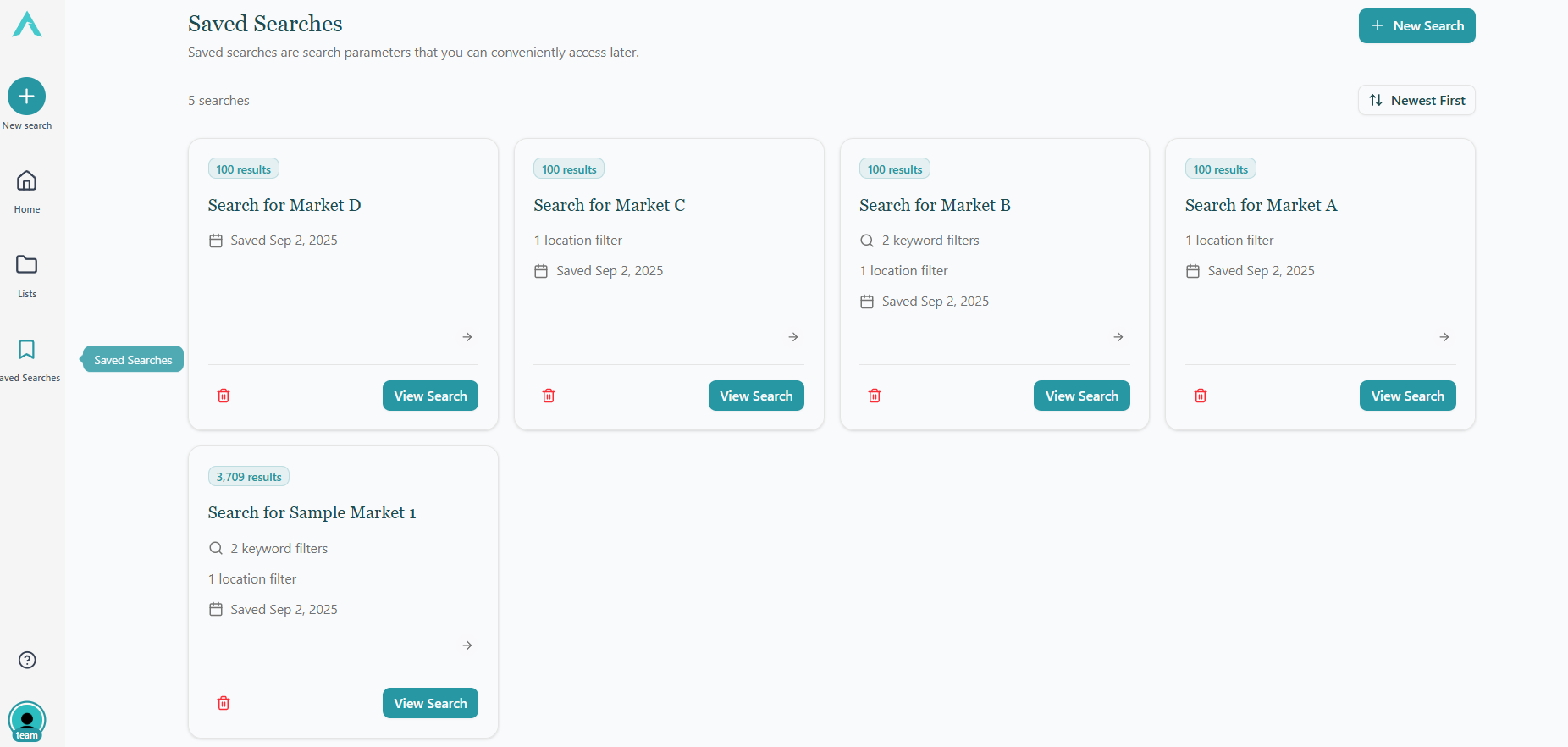
The Saved Searches page lists every search you've saved as a card. Each card shows:
- The search name you chose.
- A result count badge with the number of matches the search returned when you last ran it.
- A Domain search badge if the search was built around a reference website.
- The keywords and location filters applied, shown as a short summary.
- The date you saved the search.
From each card you can:
- View Search — re-run the search and land on a fresh results page.
- Delete — remove the saved search permanently. This cannot be undone.
Use the Newest First / Oldest First toggle at the top of the grid to reorder the cards.
Starting a new search
Click New Search in the top-right of the Saved Searches page (or the same button in the sidebar) to return to the search panel and build another query from scratch.