Once your search completes — applying your semantic, similarity, or keyword query together with any filters — you'll land on the Search Results page showing up to 100 matching organizations.
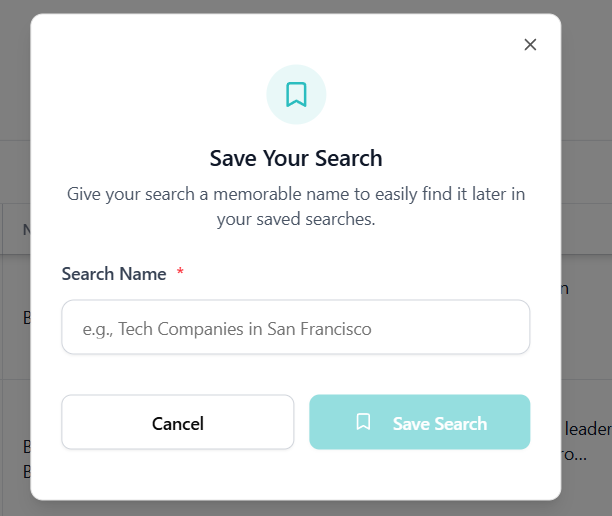
If you aren't satisfied with what you see, you can adjust your query directly from the compact search bar at the top of the page. You can also save the current search (Save Search button, top right) and reuse it later from the Saved Searches tab in the sidebar.
The results table
By default, the table shows the following columns:
- Domain — the website that was analysed.
- Actions — open a dedicated company profile for the organization.
- Name — the organization's name as it appears on its website.
- Summary — a short AI-generated description of what the organization does.
- Country — where the organization is registered.
- Employee class — a proxy for organizational size.
- Summary keywords — the most relevant keywords for the organization. Click Show all to expand the full list.
A lot more information is available beyond the defaults. Click Re-arrange columns to open the column manager, where you can:
- Toggle additional columns on or off (address, NACE code, registration date, and more).
- Reorder columns by dragging them.
- Remember to click Apply changes to save your layout.
Use the arrows at the edges of the table to scroll through columns that don't fit on screen.
Map view
Above the table you'll find a Show Map View button. Click it to switch from the table to an interactive map that plots each result at its registered location. Click Show Table View to switch back. The map respects your current search and filters — it only shows the organizations that are in your current results.
Hiding duplicates
Some organizations are reachable through several domain aliases (e.g. example.de and example.com pointing to the same company). Toggle Hide duplicates to collapse these into a single row so each organization only shows up once. The toggle sits next to the Show Map View button when you're in table view.
Company profile
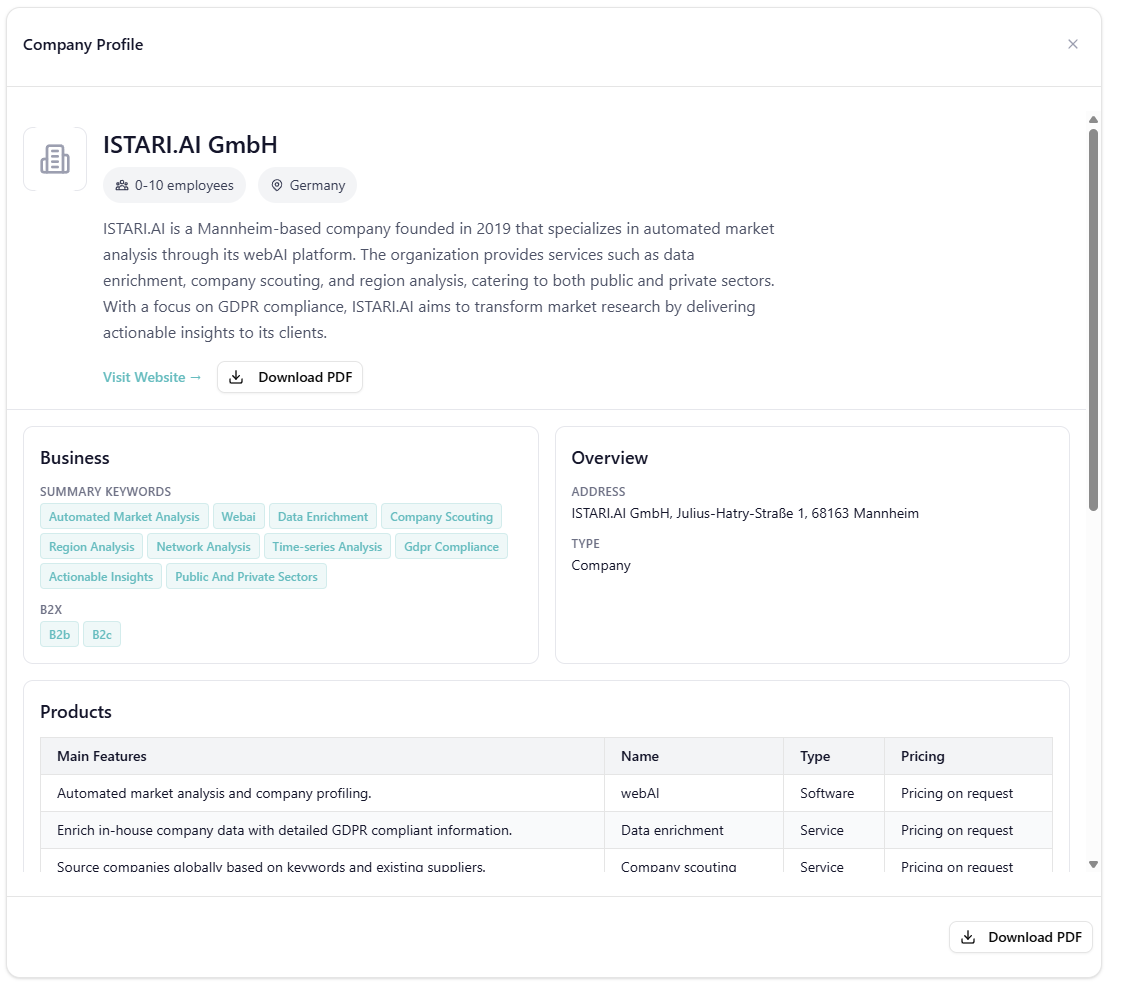
Click View profile on any row to open a side panel with the full profile for that organization. The panel groups everything we know — name, summary, addresses, contact info, keywords, classification, coordinates, and more — into one scrollable view. From here you can:
- Visit the organization's website with the external-link button.
- Download as PDF to save the profile as a standalone document.
Next steps
From the results table you can also:
- Export the full list or a selection as CSV or Excel.
- Create a list from selected organizations and return to them later.