

Create a list
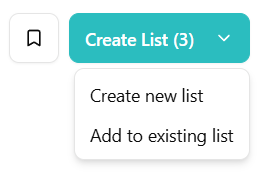
From any results table, tick the checkboxes next to the organizations you want to keep. Then use the toolbar to either:- Create a new list: give the list a name and save it.
- Add to existing list: append the selected organizations to a list you already have.
Manage your lists
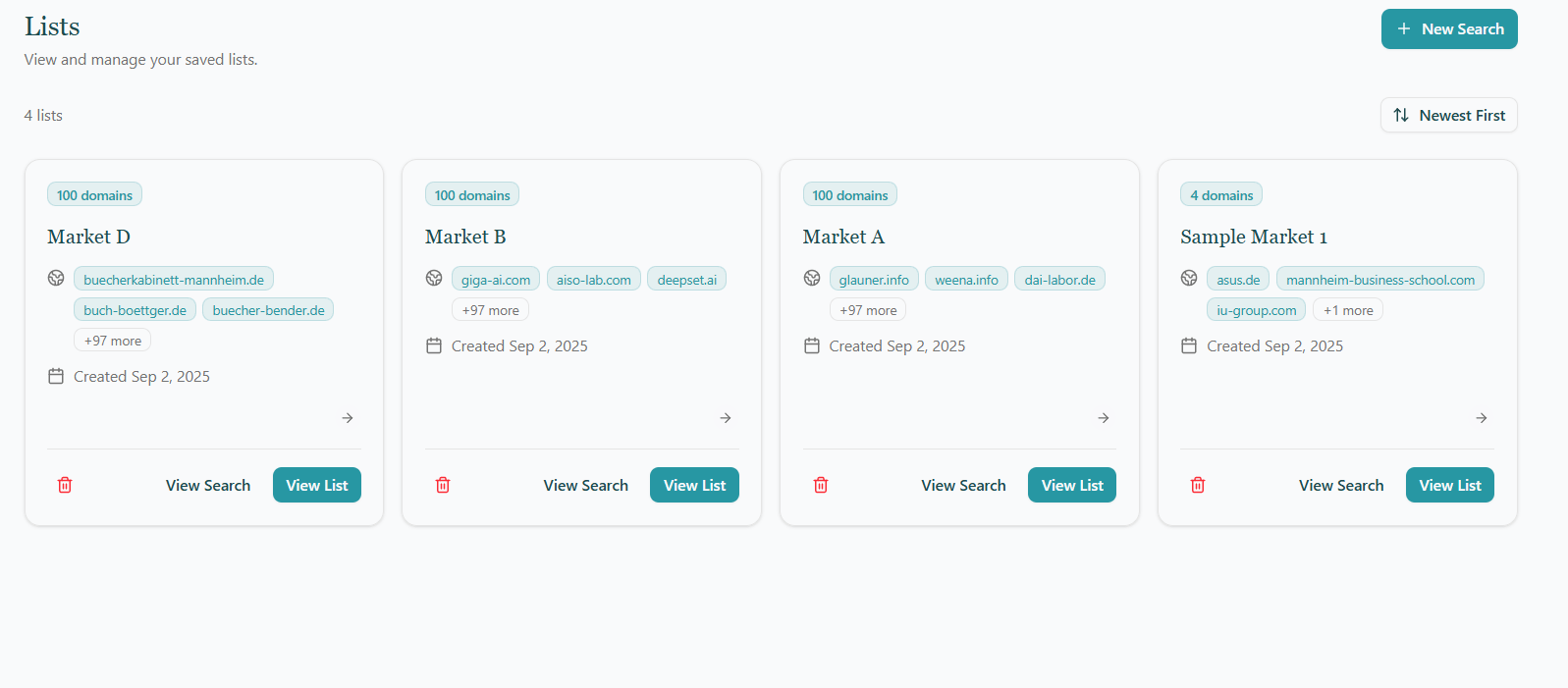
All of your lists are accessible from the Lists tab in the sidebar. Each card shows the list name, how many domains it contains, and when it was created. From here you can:- View List: open the list detail page (see below).
- View Search: re-run the original search that seeded the list, so you can discover more organizations to add.
- Delete: remove a list permanently (this can’t be undone).
List detail page
Opening a list shows every organization you’ve added, along with:- A header with the list name and creation date, plus a back arrow to return to the Lists overview.
- A search-source dropdown above the table. If your list was built from multiple searches, this lets you switch between All Searches (every organization in the list) and any individual originating search. Each option shows the number of domains it contains. When you pick a specific search, a View Search button appears so you can re-run it and discover more candidates to add.
- The full-featured table: same column management, hide-duplicates, export and other tools as on the regular Search Results page.