

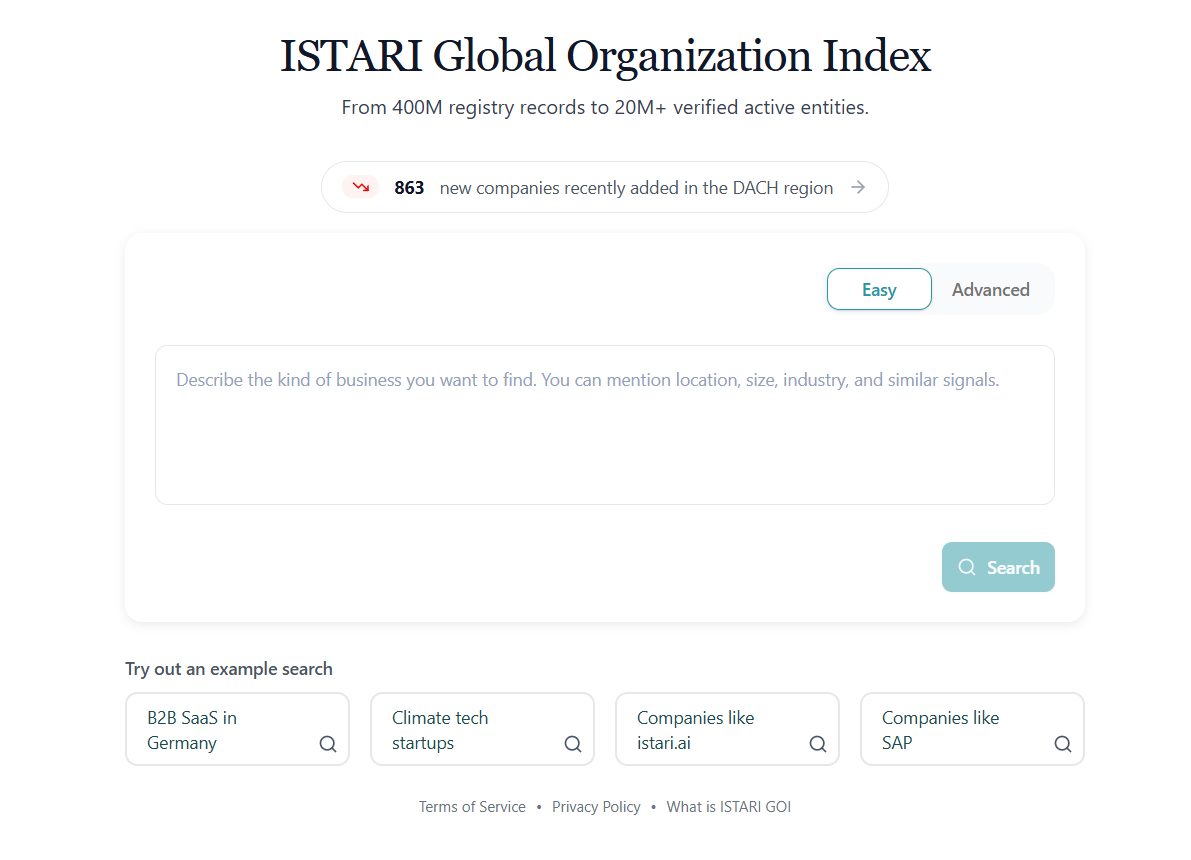
What you see on the home screen
- Search panel (centre): where you enter queries to begin discovering organizations.
- New organizations pill (above the search panel): shows how many organizations have been newly registered in the DACH region today. Click it to open the New organizations page.
- Example searches (below the search panel): ready-made queries you can click to try out the search.
Sidebar (left)
The vertical sidebar gives you fast access to your work in GOI:- New search (blue button): return to the search panel and start a fresh query.
- Home: also returns you to the search panel.
- Lists: open your saved Lists of organizations.
- Saved Searches: open your Saved Searches.
- The help menu (question-mark icon). See the Help Section for what’s inside.
- Your profile avatar. Click it to open your account dropdown: see below.
- If you have credit-based features, your credits balance is displayed under the avatar. Click the number to open Subscription and Billing.
Profile dropdown
Clicking your avatar at the bottom-left opens a dropdown showing your name, email, and tier. From here you can:- Manage Account: open your user profile to change name, password, etc.
- API Keys: open the API Keys page (only shown if your account has API access).
- Subscription and Billing: track credits, invoices, and transactions (only shown if your account has billing).
- Manage Organization: manage your organization’s members and settings (only shown if you’re part of an organization).
- Sign out: end your session.
Easy mode vs. Advanced mode
The search panel has a toggle in the top-right between two ways of searching:- Easy mode: describe what you are looking for in a single sentence and let ISTARI’s AI agent interpret it. The agent picks the right search method (see below), fills in any filters (location, size, industry), and runs the query for you. Best if you’re not sure which search method fits.
- Advanced mode: you pick the search method yourself and configure filters manually. Best when you want precise control or know exactly how you want to query.
Three ways to search
In Advanced mode, the search panel has a dropdown that lets you pick between three distinct search methods. Each is suited to a different starting point:
All three methods can be combined with Location Filters, Organizational Filters, and keyword refinement filters to narrow results further. In Easy mode you don’t pick the method, the agent does, but the same filter system is available.